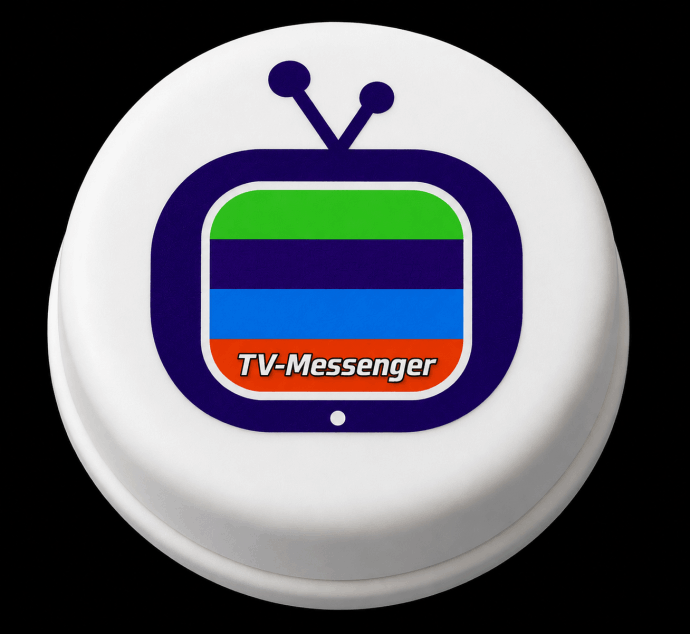
The Confirmation button is used to confirm and remove all messages appearing on the TV with one button press. It also can display a message on the TV by holding down the button.
The button connects to the TVM service by connecting it to a Smartphone or to a Mini-hub. If it is connected through a phone, sounds will be heard on the phone when the button is pressed to remove messages on the TV linked to the M-brAIn. Double clicking the button will cause a bell sound to be heard on the phone.
The button can be connected via a Mini-hub, in which case a phone is not required. But a mini-hub does not generate button press sounds. The initially released button is known as the 'classic confirmation button'.
An 'enhanced' button is coming soon that connects to the Mini-hub and will provide sounds. This enhanced button will be customizable to control other functions in the home in addition to the TV Messenger confirmation function. This includes sending an alert directly to the caregiver, operating lights, turning the TV on and off, controlling a thermostat, and a lot more. Details will come with the product announcement.
The button requires some initial steps to 'pair' it to the smartphone, tablet, or mini-hub that will be used. The original classic button also requires some pre-programming on the smartphone or tablet that is being used (this pre-programming will be eliminated in the Button-2.0 version in development).
For the phone or tablet, there is an app that must remain running in order for button presses to be sent to the TV Messenger service for processing. The Android and iOS app may be downloaded from the Play Store (under the name 'Flic') or at the App Store (under the name 'Flic app').
Setting up the button
First, the button is 'paired' with the Smartphone, tablet, or mini-hub. For the classic button, there is some pre-programming that must be made on the Flic app to have button presses sent the the TV Messenger service. The final step is to use the TVM app to assign the button to communicate with the M-brAIn device of the loved-one's TV. These are all one-time set ups. Once fully configured, you will not need to do this again unless you are switching to a new smartphone, tablet, or mini-hub.
What you need
• A Confirmation button. The ID code for the button should be written on the back.
• Your phone or tablet with Bluetooth enabled or your Mini-Hub
• The Flic Button app for iPhone/Android
Steps to connect
1. Install the app
Download and open the button app
2. Turn on Bluetooth
Make sure Bluetooth is enabled on your phone or tablet
3. Select Hub or Phone/Tablet to begin the paring process
4. In the lower right corner of the Flic app, look for a button 'Add Flic to Phone +'.
Pairing to Phone/Tablet
1. Tap Add Button or the + icon
2. Press and hold down the button for 5 - 10 seconds
3. Select your button when it appears
4. Follow the prompts to finish pairing
5. A button image should appear on the app which might be labeled 'My Flic'
6. The button ID, which should also be written on the back of the button
should display in the App. Or you will find it under the Bluetooth settings
as a connected device.
7. If you now press the button one, double tap, or hold the button down
you should see the button flash on the screen and a sound heard
If it won’t connect
Try these fixes:
• Move the button closer to the phone
• Restart Bluetooth on the phone
• Remove the button from old devices first
• Restart the app or phone
The button has an ID code associated with it. It is either written on the back of the button or can be viewed under the Bluetooth settings on your Smart Phone or tablet which displays devices that are paired with the phone. The format of a button code is: xx##-x####.
1. Log into the TVMapp with your username and password
2. From the Setup Screen, select 'Configure Items'
3. Select 'TVM Button set up'
4. Select the loved-one's M-brAIn device if there are multiple devices associated with this account.
5. Enter the Button ID
6, Save the information to link the button with the M-brAIn/TV